Addtional Specific Information
DEWETRON Explorer and OXYGEN
OXYGEN is DEWETRON’s user-friendly measurement software and is tightly interlinked with the DEWETRON Explorer when TRION hardware is utilized. To access devices based on TRION firmware, they must first be detected within DEWETRON Explorer. If a TRION device is not detected within DEWETRON Explorer, it will also not be detected within OXYGEN. Therefore, if a TRION device is not recognized within OXYGEN, ensure its availability within DEWETRON Explorer first.
Based on the linkage of these two applications, there are some important considerations when working with OXYGEN and DEWETRON Explorer. Firstly, note that both programs cannot be used simultaneously, as a TRION device can only interact with one application at a time. Attempting to use both programs simultaneously will result in an error message. Depending on which software was initialized first, you may encounter either an OXYGEN warning stating
⚠️ “TRION API locked by another process! (ERROR_HARDWARE_ALREADY_IN_USE)
or a DEWETRON Explorer warning stating
TRION hardware is used by another application. DEWETRON Explorer will not be able to display local TRION boards.
Secondly, simultaneous usage of actual hardware systems and simulated demo systems is not possible in OXYGEN. OXYGEN cannot distinguish between virtually created demo systems and physically connected instruments. Even though OXYGEN will recognize both systems at once, it will not be able to acquire any data from neither systems. The warning
⚠️”Waiting for sync”
will be displayed in OXYGEN. Therefore, any created demo system must be removed when actual hardware is used.
Upgrade Chassis Controller License
With TRION R7.2, additional chassis controller hardware options for the TRION3 CONTROLLER can be activated remotely via a license file, eliminating the need to send in the device for upgrades.
Requirements
A remote license upgrade requires that the chassis controller hardware is already installed in the DEWETRON device. Hence, ensure that the TRION3 CONTROLLER is already installed.
Step-by-step guide
In order to create a license file, specific information about the system is required, which needs to be exported via the “Show system report” menu. Therefore:
Click on “Show system report” within the toolbar.
Click “Save” and export all system information to a *.txt file.
Send the exported *.txt file to DEWETRON as part of the upgrade order.
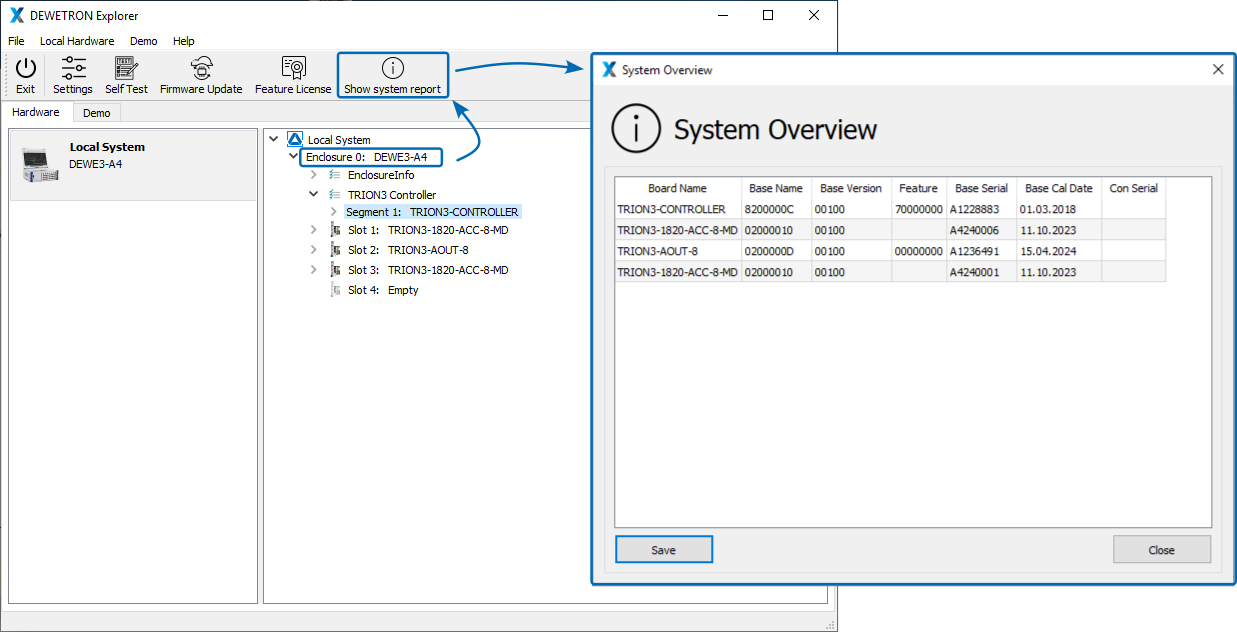
Fig. 19 Export of system information via the “Save” button in the “Show system report” menu
After successful submission of the upgrade order, you will receive a license file which needs to be installed. For a successful installation:
Selected the TRION3 CONTROLLER in the right panel of the hardware section.
Open the Feature License menu.
Enter the license key from the license file into the designated field.
Click “Apply” and the upgrade is then complete.
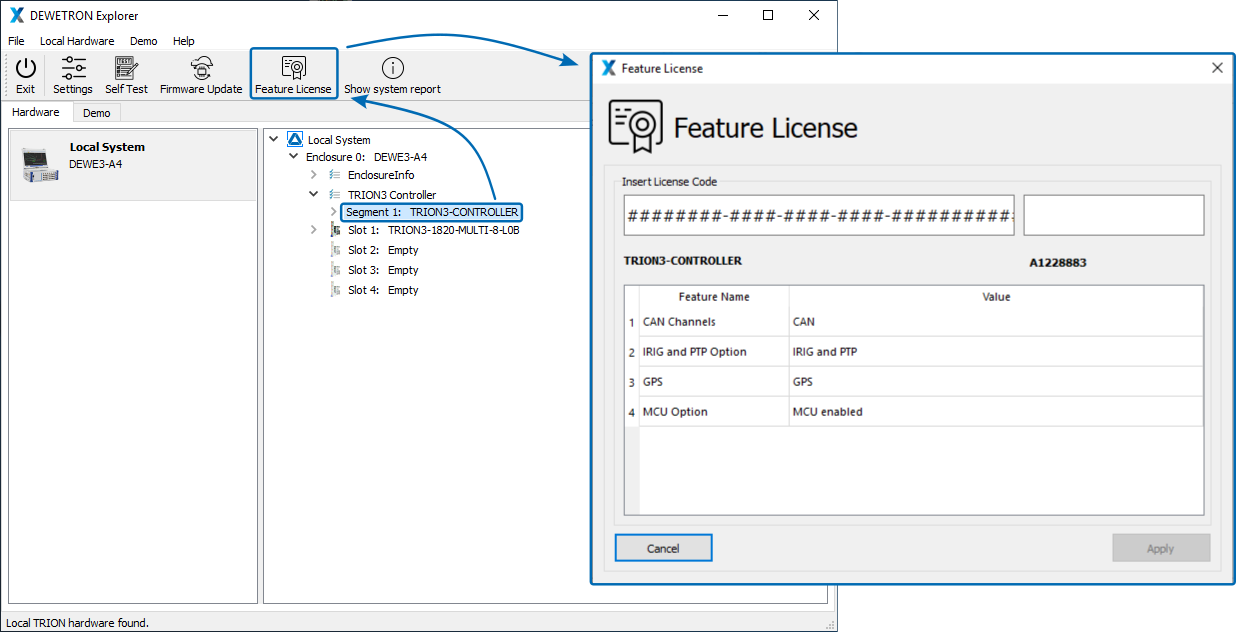
Fig. 20 Enter key into the “Insert License Code” field within the “Feature License” menu
Attention
Each license key is bound to the serial number and is therefore only valid for the respective chassis controller.