Setting up OXYGEN
OXYGEN DAQ Hardware Setting
To enable the realtime tab in the power group, activate Enable real-time computations in the the DAQ Hardware settings and restart OXYGEN. Find the setting in the following image in the red outlined box Fig. 5.
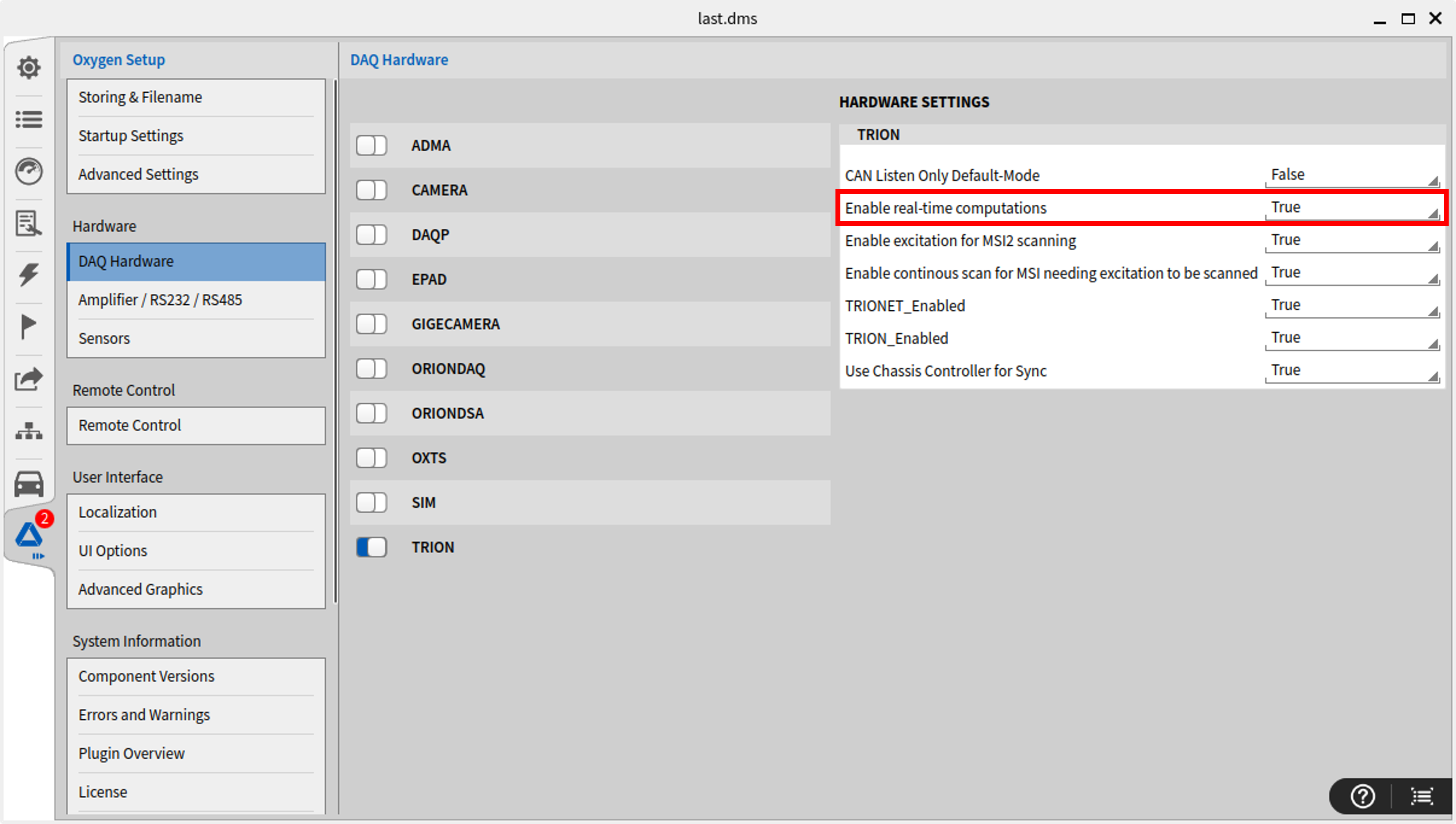
Fig. 5 DAQ Hardware Enable real-time calculation setting.
Power Group Realtime Settings
With the DAQ Hardware setting enabled, an additional Realtime tab becomes available after creating a power group.
As shown in figure Fig. 6, in the Realtime tab click the toggle Enable realtime calculations to enable the real-time module. It has the following settings:
Cycle-Rate: Sets the frequency in which the power group calculates and emits output values.
Averaging (periods): The power group values are calculated based on the average of N periods of the fundamental frequency signal. This does not affect the cycle rate but will average N periods of the fundamental for the output. For example this can be used to average a machine with 4 pole-pairs to 4 periods to smooth out mechanical speed or electical frequency.
Apply configuration: Real-Time computations require an acquisition restart to reflect changed settings. This button applies all parameters changes and restart realtime calculation immediately (this happens automatically when closing the channel list).
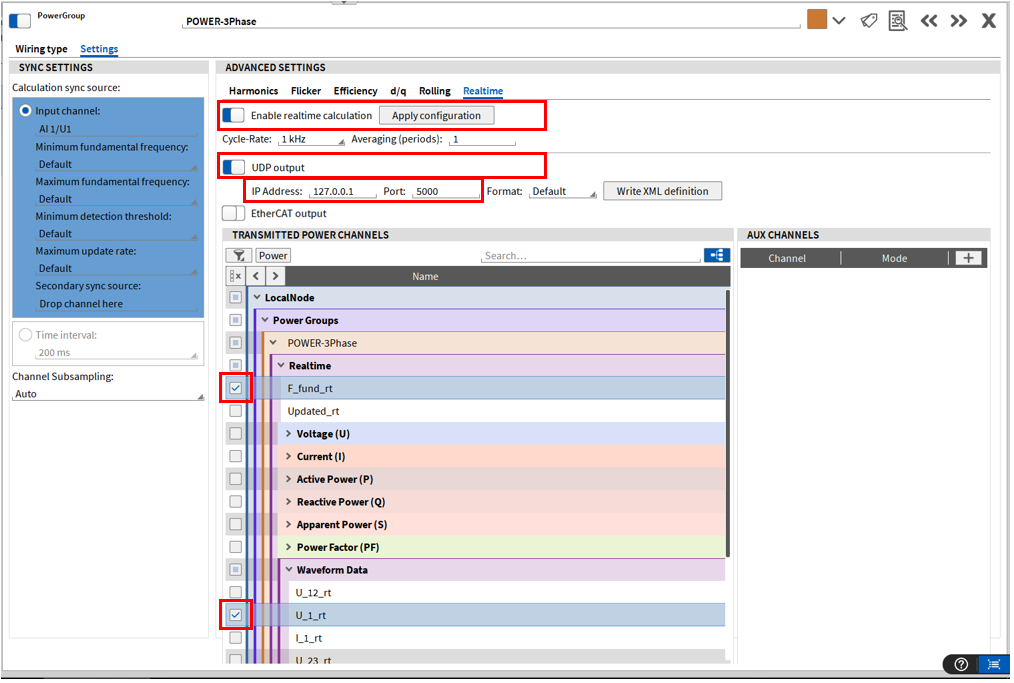
Fig. 6 OXYGEN Power Group Realtime tab and UDP settings.
Hint
It is recommended to hit the button Apply configuration when changing a parameter like Cycle-Rate or IP Address.
UDP Output
Enable the UDP output and select the channels to transfer in the Output channels list and click Apply configurations.
IP-Address: Defines the target IP Address (receiver).
Port: Defines the UDP port where the data is sent to.
Format: Default or OXYGEN. The layout of the UDP packet is described in the XML file generated via the
Write XML definitionbutton.
UDP packets are sent at the configured cycle rate with a typical delay of less than 1ms after the cycle has finished. There are currently two UDP packet formats:
Default: A generic format with some headers, timestamp and data
Field |
Offset (bytes) |
Size (bytes) |
Data type |
Description |
|---|---|---|---|---|
Packet ID |
0 |
1 |
uint8 |
Fixed value of 2. |
Sequence number |
1 |
4 |
uint32 |
an incresing number per packet |
Timestamp |
5 |
8 |
uint64 |
Milliseconds since acquisition start |
N |
13 |
4 |
uint32 |
N = number of float32 data values in this packet |
Data |
17 |
N * 4 |
N * float32 |
Realtime power group data (see definition XML for exact order of fields) |
OXYGEN: A format with a timestamp in milliseconds since midnight - suited to be processed by OXYGEN Ethernet receiver.
Field |
Offset (bytes) |
Size (bytes) |
Data type |
Description |
|---|---|---|---|---|
Timestamp |
0 |
4 |
uint32 |
Milliseconds since midnight |
Data |
4 |
N * 4 |
N * float32 |
Realtime power group data (see definition XML for exact order of fields) |
EtherCAT Output
This feature is available with OXYGEN 8.2 and newer releases.
Only one instance of an EtherCAT output can be set, because it reserves the TRION-EtherCAT-1-SLAVE for this output. This means that only one Power Group can use the EtherCAT output for the Realtime Computations.
Enable the EtherCAT output and select the channels to transfer in the Output channels list and click Apply configurations.
Output channel: Some EtherCAT masters, like a PySOEM expect the Master to output a dummy channel to an EtherCAT slave. If this is necessary, then set this option to True. Most industrial EtherCAT Masters do not need this, then set this option to False
Send timestamp: Set if the EtherCAT output should include a timestamp or not. The layout of the EtherCAT data is described in the ESI (EtherCAT Subdevice Information) file generated via the
Write ESI filebutton.
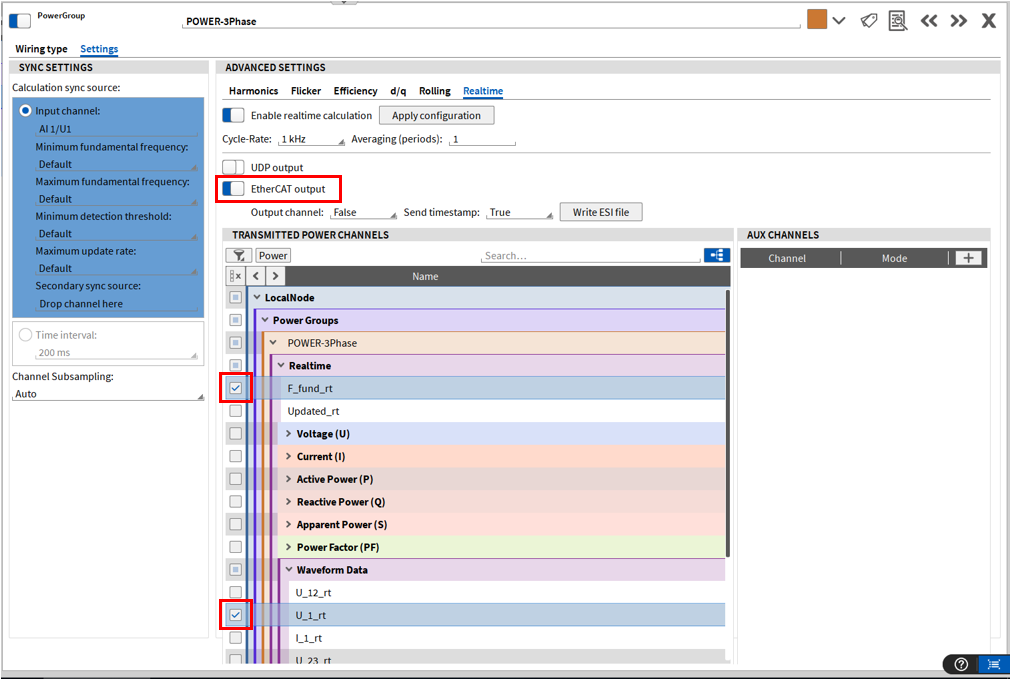
Fig. 7 OXYGEN Power Group Realtime tab and EtherCAT settings.
Hint
It is recommended to hit the button Apply configuration when changing a parameter like Cycle-Rate or Send timestamp.
if the EtherCAT output option does not appear in the Power Group Realtime Advanced Settings make sure:
That a TRION-EtherCAT-1-SLAVE board is installed in the system
The EtherCAT drivers for the board are installed
To install the EtherCAT drivers use the following commands in the Terminal:
cd /usr/lib/dewetron-ethercat/driver
sudo ./build_install_driver

   y (if asked for overwrite permission)
   y (if asked for DMA support type)
AUX Channels
The AUX or auxiliary Channels on the right side of the Realtime settings allow any analog TRION input channel to be transferred alongside the Power Values via UDP or EtherCAT. For example channels from:
TRION3-1820-MULTI
TRION3-2420-ACC
TRION-2402-dSTG
and many more
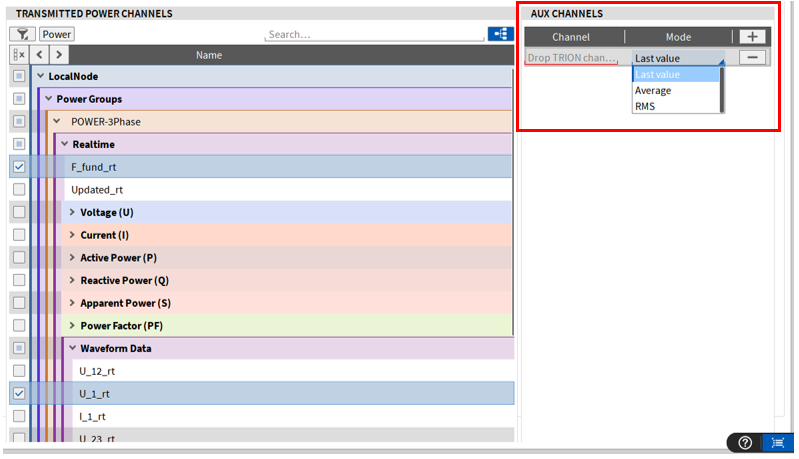
Fig. 8 OXYGEN Power Group Realtime tab and AUX Channels.
Within the AUX Channels section, any analog TRION input channel can now be assigned to the real-time output with update rates of up to 1 kS/s. Available output modes include:
Average - Block-wise average based on the configured cycle rate
RMS - RMS calculation based on the configured cycle rate
Last Value - Last acquired sample
The statistics window of the Average and RMS output modes is set to the cycle rate.
These auxiliary channel outputs are available for both UDP and EtherCAT, enabling transmission of power values alongside additional analog measurement data.
Available Power Group Realtime Channels
As a reference the following image Fig. 9. shows the available power group realtime channels for a 1-Phase power group without efficiency calculation.
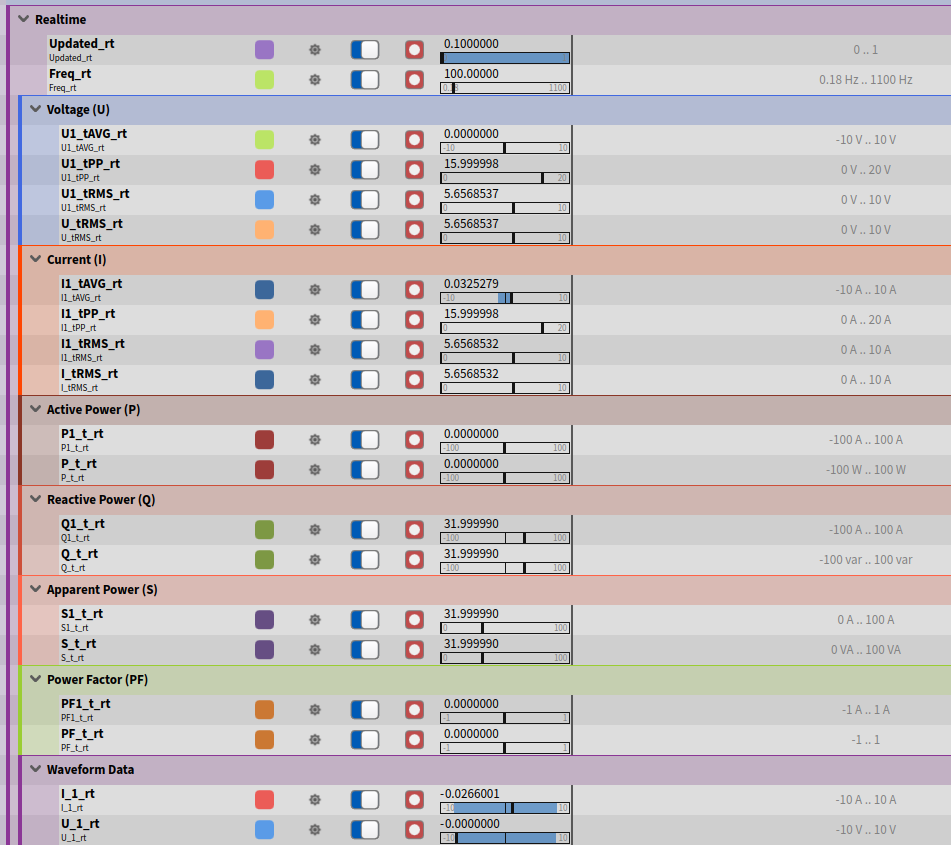
Fig. 9 Example overview for available relatime channels with a 1-phase power group.
For an examples how to use the realtime option for a 3-phase example with efficiency calculation see chapter Application Examples.
For troubleshooting and tipps see chapter Troubleshooting / Tipps.