Export Data
There are several possibilities to export the order analysis data which are explained below.
Export Data into Different Formats
To export the data, go to the export menu by selecting the certain menu tab on the menu bar (see yellow box in Fig. 16).
OXYGEN supports data export into different formats like *.txt, *.csv, *.xlsx, *.mat and *.mdf4.0/4.1 for example.
To export the data, select the channels to be exported with a check mark right to their name (see red box in Fig. 16).
Go to the options section, select the individual export format and the corresponding options below. Click the export button to start the data export (see blue box in Fig. 16).
It is also possible to automatically export the data in one of the stated formats automatically after measurement end (see green box in Fig. 16).
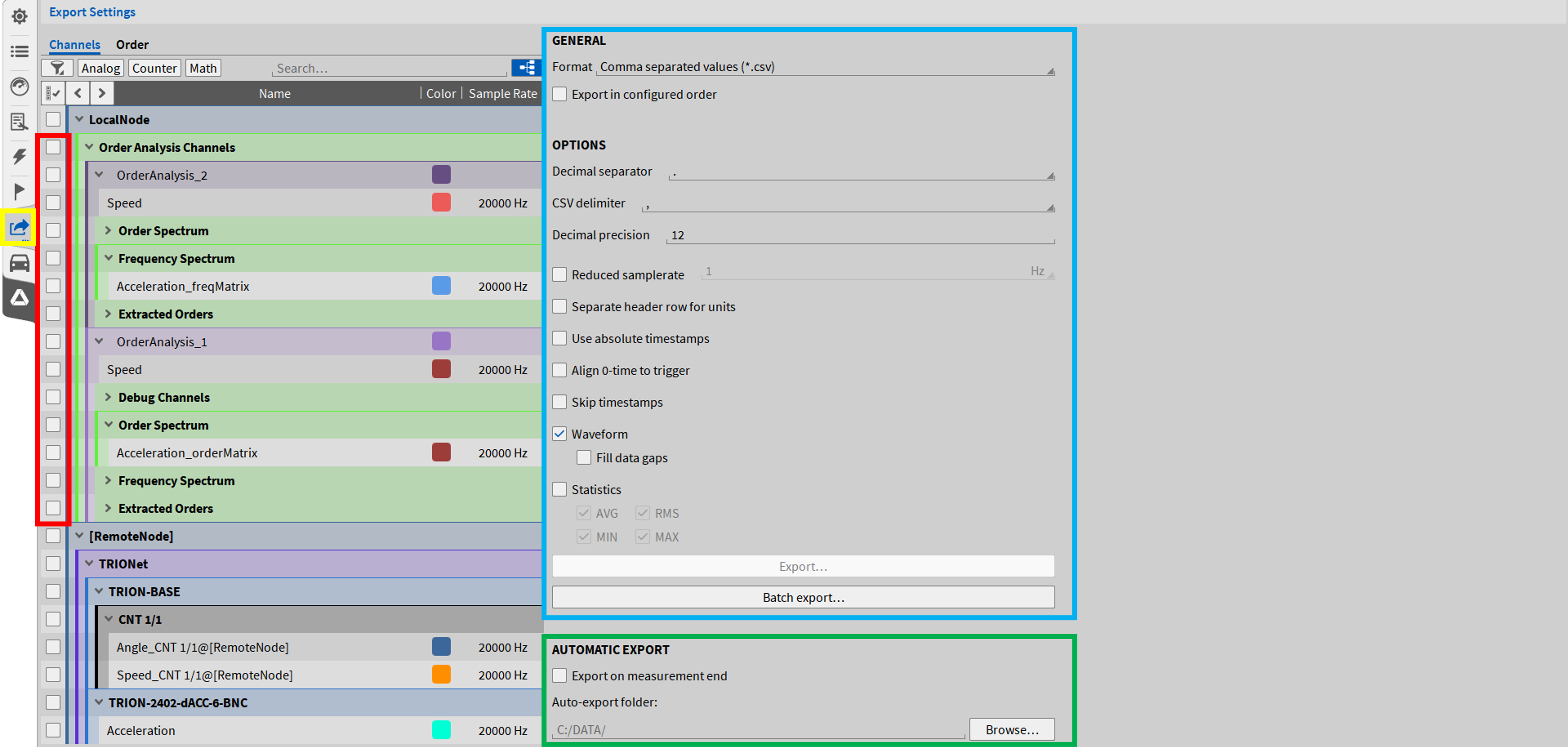
Fig. 16 Export menu - Overview
Copy & Paste Data into Different SW Packages
It is possible to copy and paste the order spectrum and frequency spectrum data displayed in an in-tensity diagram into another software package, like Excel (see Fig. 17).
Select the intensity diagram of the data you want to copy and press CTRL+C
Open the software package, like Excel, to which the data shall be pasted and press CTRL+V
As the data is stored to the clipboard, it can also be pasted into other software packages but Excel.
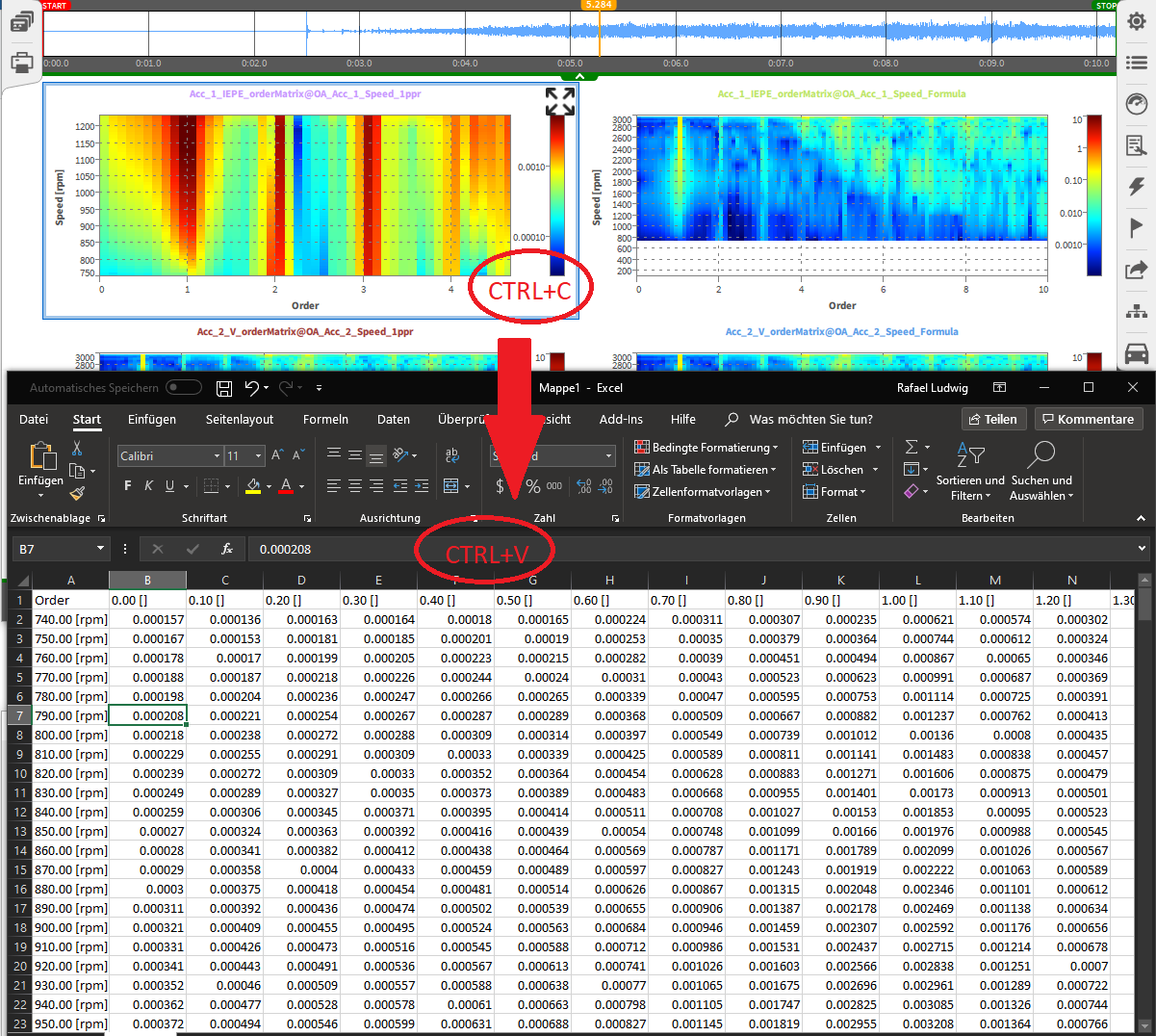
Fig. 17 Copy and paste data from OXYGEN into Excel
Save Data as Image File
It is possible to save the order analysis data as an image file. (see Fig. 18)
Select the certain instrument that shall be saved. Open the small view of the Screen menu and press the png-button to export the data into a *.jpeg or *.png-file or press the copy-but-ton to copy the data as image to clipboard and paste the image into another software.
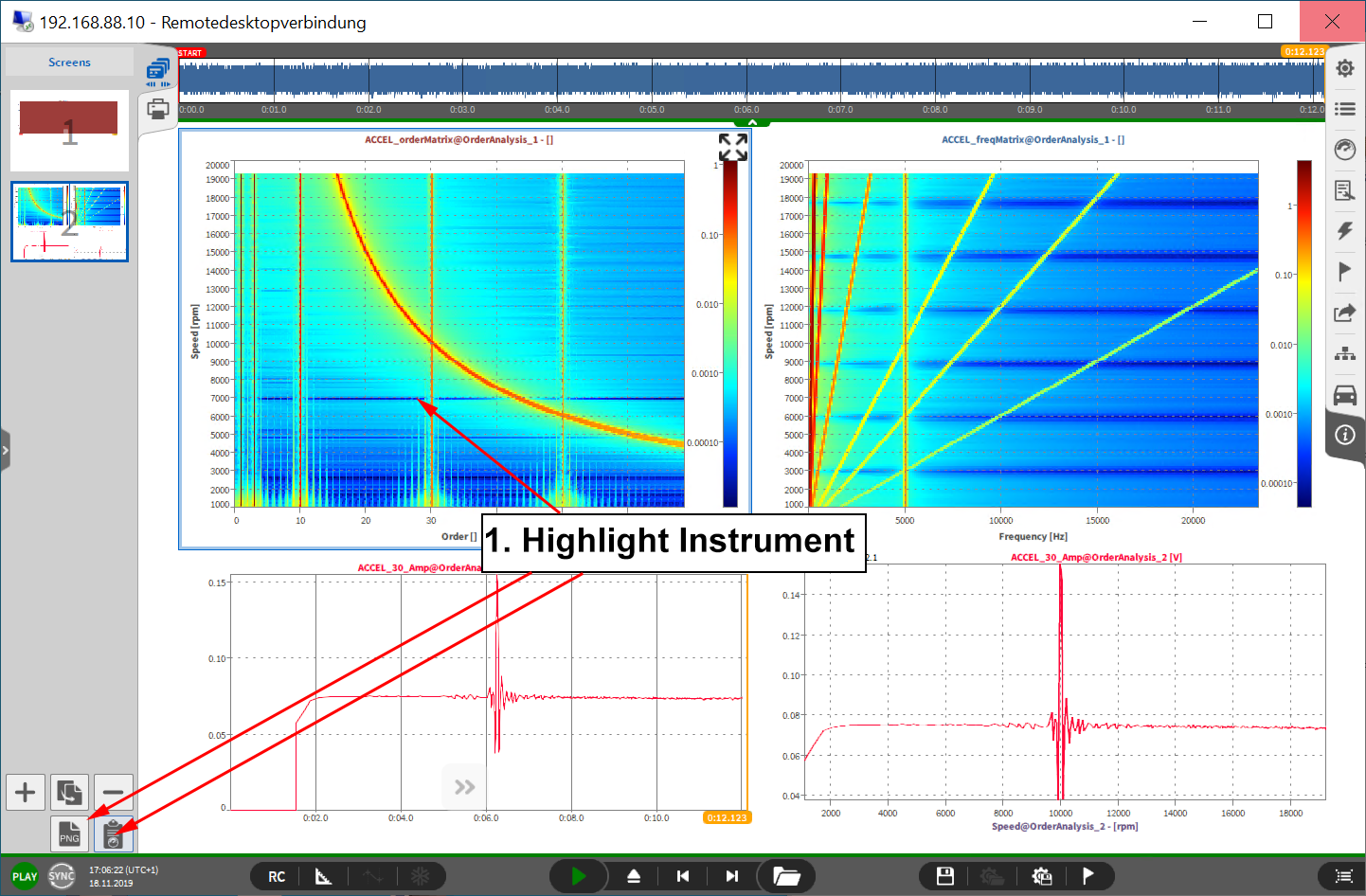
Fig. 18 Save data as image file